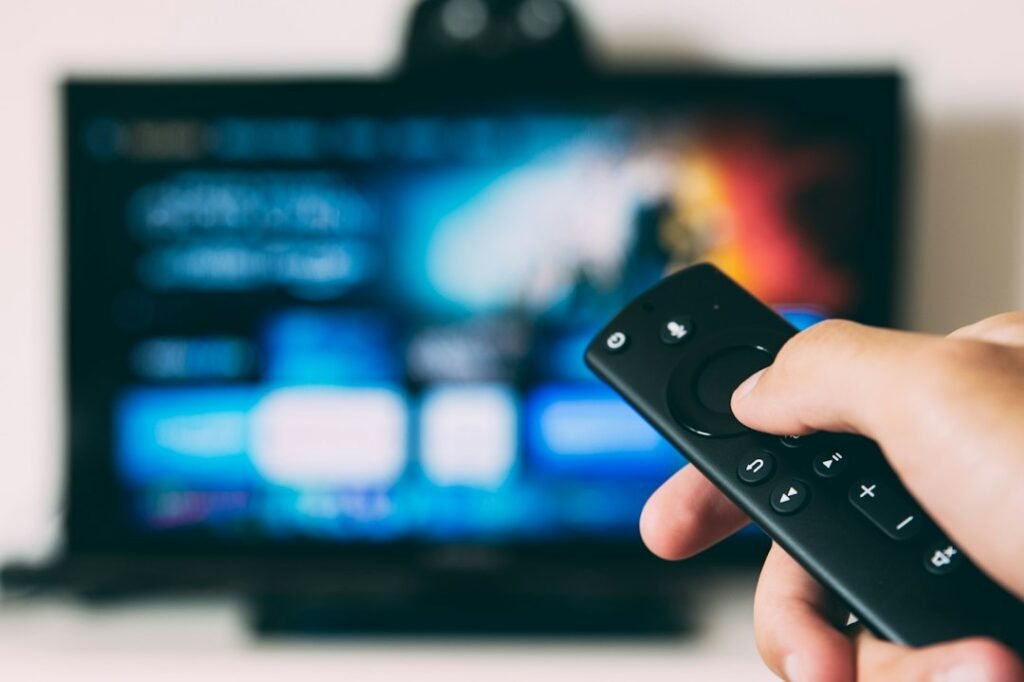
The Amazon Fire TV Stick makes it easy to stream on a compatible television, but the right IPTV setup depends on your subscription and the apps it legitimately supports. This 2026 guide walks through a safe, straightforward approach for US households—without assuming every third-party app is trustworthy or every playlist is licensed.
Before you begin: four things you need
- A Fire TV Stick connected to a working television and a power source.
- A stable internet connection with enough bandwidth for your intended video quality.
- An authorized IPTV or live-TV subscription, including any account credentials it legitimately provides.
- The service’s official app or a trustworthy compatible player it explicitly supports.
Step 1: Connect and update your Fire TV Stick
Connect the device to an HDMI input, use the appropriate power adapter, select that input on the television and join your home Wi-Fi. Open Fire TV Settings and check for device updates. Updates can improve app compatibility, security and overall streaming stability.
Step 2: Find the supported application
Search the Amazon Appstore for the official app named by your licensed provider. Confirm its publisher and permissions before installing it. If your service works through a standalone IPTV player, ask which player and version it supports. IPTV players are software tools: they do not come with television channels or redistribution rights. Avoid installing applications from unverified websites or sharing subscription credentials through chat groups.
Step 3: Sign in with your provider’s method
Providers may use a username and password, an activation code or an authorized playlist URL. Follow their documented instructions and treat codes, links and playlists as private. If an app asks for unrelated permissions, payment outside the provider’s official checkout, or credentials for another account, stop and contact support.
Step 4: Check channels, audio and picture settings
Open a program that is included in your subscription and test normal playback. Where supported, choose a sensible quality setting, check subtitles and audio tracks, and test remote navigation. An advertised “4K service” does not mean every program is broadcast in 4K. Your TV, HDMI setup, app and internet connection also matter.
Common Firestick IPTV issues and fixes
The app will not install
Check the Fire OS version, available storage, region and app compatibility. Restart the device and install system updates. If an app has been removed from the store, do not assume a random downloadable replacement is safe.
Playback freezes or buffers
Restart the router and Fire TV Stick, check other devices using the same network, and move closer to the router if Wi-Fi signal is weak. Use a compatible Ethernet adapter if appropriate. Test a different legitimate stream to determine whether the problem is local or provider-specific.
Login or activation fails
Double-check the activation code or credentials, ensure the account is active and check the service’s permitted device limit. Never share personal account details publicly. Contact the provider using the support address published on its site.
Audio plays but video is blank
Try another included channel, install app updates and verify the TV’s supported playback formats. Some providers use formats or DRM features that older devices do not support.
How does Fire TV Stick compare with Android TV or Smart TVs?
Fire TV offers a compact external device and an app store. Android TV models may offer more native app choices. Samsung and LG devices run their own operating systems and have different app availability. Choose based on the apps you need, the device you already own, and where the provider officially supports playback. See our Smart TV compatibility guide and general installation instructions.
Frequently asked questions
Can Fire TV Stick play IPTV legally?
Yes, internet-delivered television is a normal technology. The subscription and content must be distributed with the required rights.
Do I need a VPN?
Not necessarily. A VPN is not a substitute for content rights or authorization. Follow the streaming provider’s legitimate requirements and your local laws.
Does one subscription work on multiple TVs?
It depends on the provider’s simultaneous-stream limits, not simply how many devices can install the app. Confirm before you purchase.
Ready to check compatibility?
If you’re considering IPTV The Fox, compare available plans and contact support with your exact Fire TV model before ordering. Ask for confirmed app compatibility, content authorization, activation and cancellation terms.